Hands-On with GitHub MCP Server: Connecting AI Agents to Repositories, Issues, and Pull Requests with a Minimal Toolset
GitHub MCP Server in Practice: Connect an AI Agent to Repositories, Issues, and Pull Requests with a Minimal Toolset
If an AI agent can only read conversation content, it is difficult for it to take part in software development in any meaningful way. But once it can safely access live context from repositories, issues, pull requests, and CI/CD, the workflow changes from “answering questions” to “taking action in the engineering process.” GitHub’s official github-mcp-server is an open-source Go project that standardizes this connection layer.
Rather than treating it as a list of tools, this article starts from implementation and permission design. It breaks down how the server connects to an MCP host, how to choose tools, when to use read-only mode, and why lockdown mode must not be mistaken for a complete security boundary. Finally, it uses a minimal configuration to set up a GitHub AI workflow for everyday software development.
This article is based on the `github/github-mcp-server` repository, its README, and official configuration and policy documentation. Project metrics and version information reflect the state verified on September 14, 2026.
First, the project: it bridges the gap between “context and capabilities”
The purpose of github-mcp-server is straightforward: connect AI tools that support MCP directly to the GitHub platform, so they can read repositories and code using natural language, manage issues and pull requests, monitor GitHub Actions, and access code-quality and security information.
This positioning is not exactly the same as that of a typical “GitHub API wrapper.” An API wrapper generally just packages endpoints in another interface; an MCP server needs to organize these capabilities into tools, resources, and prompts that an AI host can discover, understand, and call. In other words, the project’s value is not just that it “can call the GitHub API,” but that it turns API capabilities into tool boundaries an agent can use.
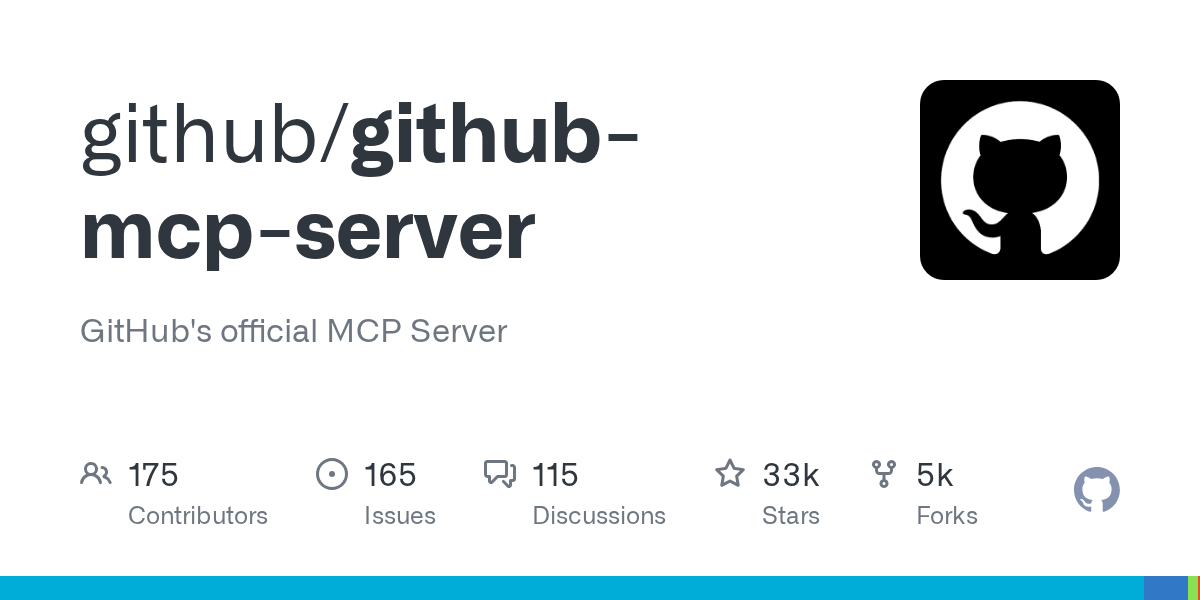
At the time of verification, the repository showed about 32,900 stars, an MIT License, Go as its primary language, and a most recent push on 2026-09-10; the latest release was v1.12.1. This is not a tutorial example, but an actively evolving, implementation-oriented server that offers both remote and local deployment options.
Remote and local: two boundaries for the same capabilities
The official project offers two main ways to use the server.
Remote server: the fastest way to get started, but dependent on a hosted environment
The remote server URL is:
https://api.githubcopilot.com/mcp/The MCP host connects over HTTP, so there is no need to install Docker, Go, or a binary locally. Hosts that support remote MCP, including VS Code, Claude Desktop, Cursor, and Windsurf, can add this server directly.
The advantage of remote mode is its low startup cost, and it can also provide remote-only capabilities, such as tools related to the Copilot coding agent. However, it depends on GitHub’s hosted service, and whether OAuth is available depends on whether the host has registered the corresponding GitHub App or OAuth App with GitHub. If a host does not support remote MCP, or an organization needs to control its own execution environment, use the local server instead.
Local server: you control the execution environment and authentication
The local server can be run with Docker or a prebuilt binary, or built directly from source. Here is the simplest Docker configuration:
docker run -i --rm \\
  -e GITHUB_PERSONAL_ACCESS_TOKEN=[REDACTED] \\
  ghcr.io/github/github-mcp-server
If you do not use Docker, you can build from source instead:
go build -o github-mcp-server ./cmd/github-mcp-server
GITHUB_PERSONAL_ACCESS_TOKEN=[REDACTED] ./github-mcp-server stdio
In practice, manage tokens directly with secure environment variables or a credential manager; do not write secrets into a repository, MCP configuration file, or log. The official code also supports OAuth and GitHub App authentication, but the support conditions differ across deployment modes and GitHub hosts. Organizations should confirm the applicable authentication flow in advance.
More toolsets are not always better: design the agent’s capability surface first
Without additional configuration, the server uses these default toolsets:
context
repos
issues
pull_requests
users
The full version can also enable toolsets such as actions, code_security, dependabot, discussions, git, governance, projects, secret_protection, security_advisories, and stargazers. The remote server additionally offers copilot, copilot_spaces, and GitHub support documentation search.
Grouping capabilities this way has two practical benefits:
1. It reduces noise when choosing tools. The more tools there are, the more likely an agent is to choose the wrong one among similar tools, and the larger its prompt context becomes.
1. It makes permission intent explicit. An agent that needs to read issues and PRs does not also need to see tools for triggering workflows, writing to projects, or scanning for secrets.
A local server can use --toolsets or GITHUB_TOOLSETS to enable an allow-list:
GITHUB_TOOLSETS="context,repos,issues,pull_requests" \\
  github-mcp-server stdio
If only a few specific tools are needed, use --tools or GITHUB_TOOLS instead:
GITHUB_TOOLS="get_file_contents,issue_read,pull_request_read" \\
  github-mcp-server stdio
The corresponding controls for the remote server are the X-MCP-Toolsets and X-MCP-Tools headers, or selecting a single toolset through the URL path. This lets the same hosted endpoint narrow its capabilities for different hosts or workflows.
The combination rules that are actually worth noting
The point of configuring tools is not just to know “which switches exist,” but to understand the precedence among them.
Read-only is the highest-priority safeguard against writes
When --read-only is enabled, the server exposes only read tools; even if another setting explicitly requests a write tool, that tool is not registered. In Docker, use GITHUB_READ_ONLY=1:
docker run -i --rm \\
  -e GITHUB_PERSONAL_ACCESS_TOKEN=[REDACTED] \\
  -e GITHUB_READ_ONLY=1 \\
  ghcr.io/github/github-mcp-server
For teams adopting AI agents for the first time, read-only should be the default starting point. First let the agent search code, read issues, analyze PRs, and inspect Actions; then gradually enable write capabilities for workflows that have been validated.
Exclude tools is useful as an enterprise deny-list
If a team wants to enable the entire pull_requests toolset but does not want an agent to merge or create PRs, it can use --exclude-tools or GITHUB_EXCLUDE_TOOLS. An excluded tool remains disabled even if it also appears in a toolset or in the individual tools list.
The corresponding header for the remote server is X-MCP-Exclude-Tools. This “allow broadly, then explicitly exclude high-risk operations” configuration is suitable for platform administrators to apply centrally; for a personal development environment, starting with a small allow-list is usually more appropriate.
Lockdown mode filters content; it is not an authorization system
This is one of the project’s most important design features to understand correctly. Lockdown mode limits content the server retrieves from public repositories: for issues, PRs, comments, commits, and similar items, the server checks whether the author has push access to the repository and tries to filter out content that does not meet the requirement.
Its goal is to reduce prompt-injection risks from untrusted repository content, but the official documentation explicitly explains that:
- It is a best-effort content filter.
- It does not change the read/write permissions of the underlying GitHub credential.
- Content filtered by one tool may still be accessible through another tool or directly with the same credential.
- Private repositories and collaborators with the corresponding permissions are handled differently.
Therefore, use lockdown mode alongside a least-privilege token, read-only mode, a tool allow-list, and host policy. It must not be used by itself as a data-isolation or authorization boundary.
A minimal workflow you can put into practice
Suppose the goal is to let an agent help “read repositories, organize issues, and inspect PRs,” without allowing it to modify GitHub directly. Start with a local Docker server:
{
  "mcp": {
    "servers": {
      "github": {
        "command": "docker",
        "args": [
          "run",
          "-i",
          "--rm",
          "-e",
          "GITHUB_PERSONAL_ACCESS_TOKEN",
          "-e",
          "GITHUB_TOOLSETS",
          "-e",
          "GITHUB_READ_ONLY",
          "-e",
          "GITHUB_LOCKDOWN_MODE",
          "ghcr.io/github/github-mcp-server"
        ],
        "env": {
          "GITHUB_PERSONAL_ACCESS_TOKEN": "${input:github_token}",
          "GITHUB_TOOLSETS": "context,repos,issues,pull_requests",
          "GITHUB_READ_ONLY": "1",
          "GITHUB_LOCKDOWN_MODE": "1"
        }
      }
    }
  }
}
This configuration has clear capability boundaries:
- The agent can access the current user and GitHub context.
- The agent can read repositories, issues, and pull requests.
- Write tools are disabled by read-only mode.
- Lockdown mode helps reduce the risk of public-repository content injecting instructions into the agent.
- The token is supplied through the host’s secret input and is not hard-coded into the article or repository.
If you later need to “create PRs” rather than just read them, consider using a separate server configuration or host profile instead of exposing the same fully privileged server to every workflow. The closer the permission boundary is to the actual task, the easier it is to review and to investigate when something goes wrong.
The source shows that this is more than a thin API adapter
The current CLI entry point is cmd/github-mcp-server/main.go. It uses Cobra to create stdio and http server startup paths, and integrates flags, environment variables, and configuration values through Viper. At startup, it parses:
- Authentication: PAT, OAuth, or GitHub App.
- Toolsets, individual tools, and the exclusion list.
- Read-only, lockdown, and insiders modes.
- GitHub host, HTTP port, base path, and content window.
- Runtime parameters such as repository access caching and command logging.
go.mod shows that it uses dependencies including the official MCP Go SDK, go-github, Cobra, Viper, and Chi. This structure shows that the server’s core job is not merely to forward HTTP requests; it must handle MCP tool schemas, mutually exclusive authentication modes, tool capability filtering, the GitHub API client, and the lifecycles of different transports.
Questions to answer before enterprise deployment
The GitHub MCP Server’s permissions are ultimately still limited by GitHub’s native authorization model: MCP should not let users access resources their GitHub API credentials cannot access. But “whether access is possible” and “whether the agent should be allowed to see or execute something” are two different questions. Before deployment, at least confirm:
1. Does this agent need read-only access, or does it genuinely need write access?
1. Is the token a fine-grained PAT that covers only the necessary repositories?
1. Are high-sensitivity toolsets such as actions, security, or projects needed?
1. Have the organization’s OAuth App or GitHub App integrations for third-party hosts been approved?
1. Is SSO enabled, and has the token’s SSO status been confirmed?
1. Does the team understand that the current audit log mainly shows ordinary GitHub API calls, rather than a complete record of MCP-specific operations?
The official policy documentation also states that remote hosting currently targets GitHub Enterprise Cloud; GitHub Enterprise Server use cases should use a local server or be planned according to the latest official support status. Policies, host support, and OAuth behavior continue to evolve, so this article’s configuration should not be treated as a permanent compatibility guarantee.
Conclusion: treat MCP as a capability boundary, not a magic button
The practical value of github/github-mcp-server is that it organizes GitHub engineering data and operational capabilities into an MCP interface an AI agent can understand. Mature usage, however, means not opening up every capability at once.
For an individual developer, a minimal toolset plus read-only mode is enough to support repository exploration, issue triage, PR summaries, and CI failure analysis. Teams and enterprises also need to layer fine-grained tokens, OAuth/GitHub App policy, SSO, exclusion lists, and lockdown mode, while clearly distinguishing “content filtering” from “permission authorization.”
If your AI coding workflow increasingly needs live, cross-repository context, this project is worth trying first with a read-only profile. Let the agent understand the engineering environment before deciding which actions are worth authorizing.